With the Glide App – manage your account anywhere, anytime
Take control of your Glide account using our easy-to-use mobile app.
Whether you need to add a device, change your password, check the service status or contact us for support, everything you need is right at your fingertips.
App features
▼ Select a feature below to expand and view the instructions.
Get your consoles and smart devices online
Games consoles, smart speakers, smart TVs and other devices may not be able to open the Glide login page. You can use the Glide App to add these devices to your account using their MAC address.
Step 1: Sign in
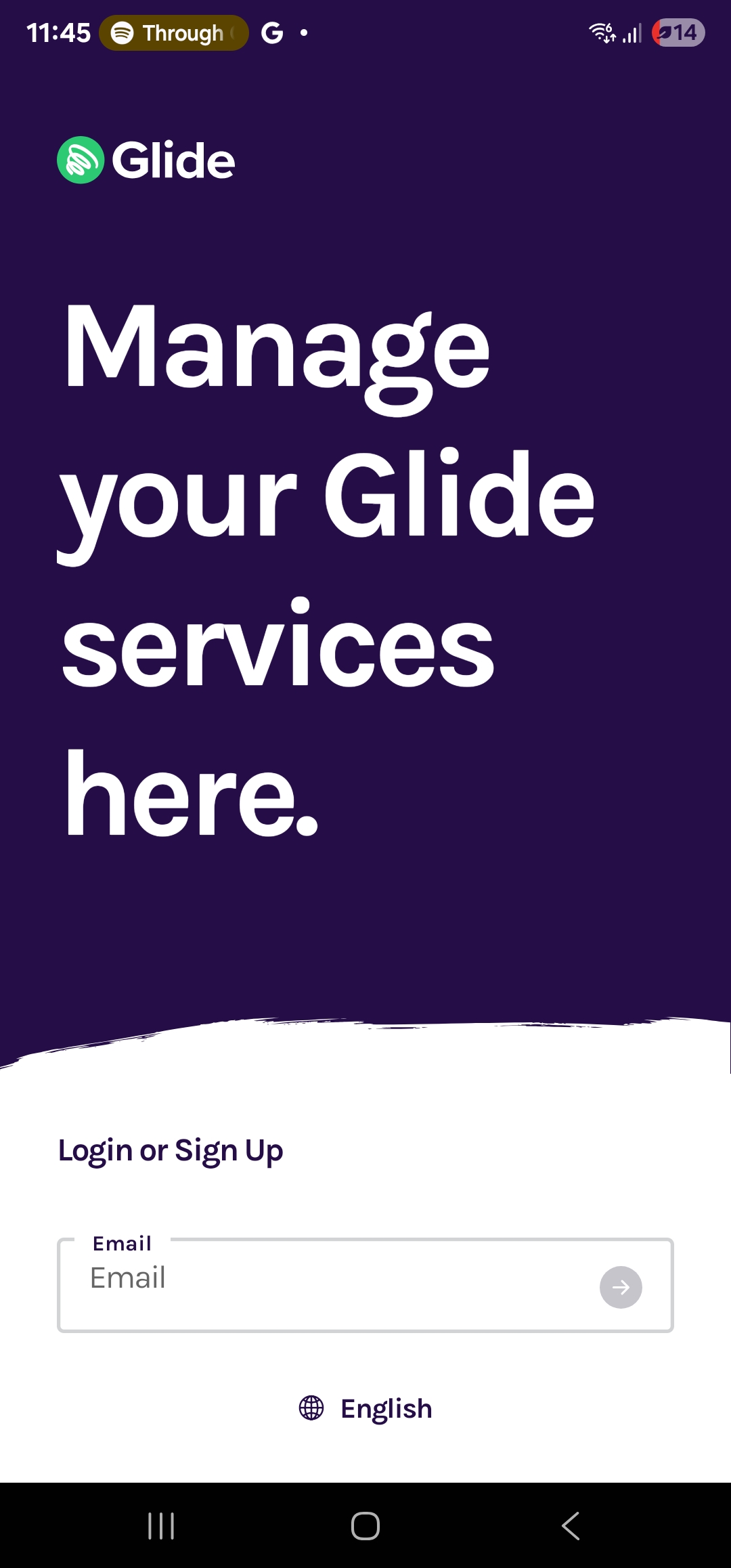
- Open the Glide App.
- Sign in using your Glide username, which is the email address you registered with, and your password.
- You will be taken to the app home screen.
Step 2: Open Devices
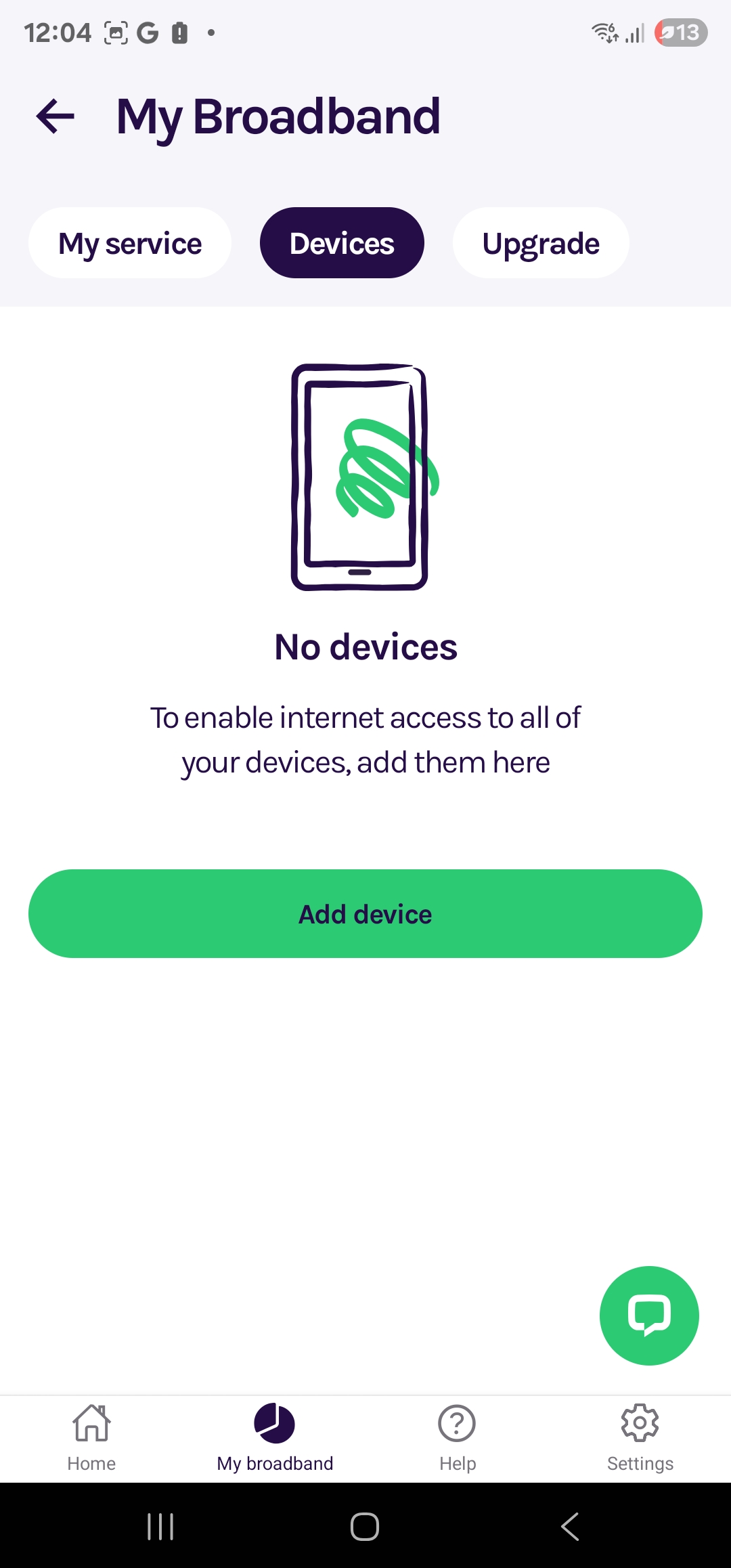
- Select My Broadband from the bottom menu.
- Select Devices at the top of the screen.
- Select Add Device.
Step 3: Enter the device details
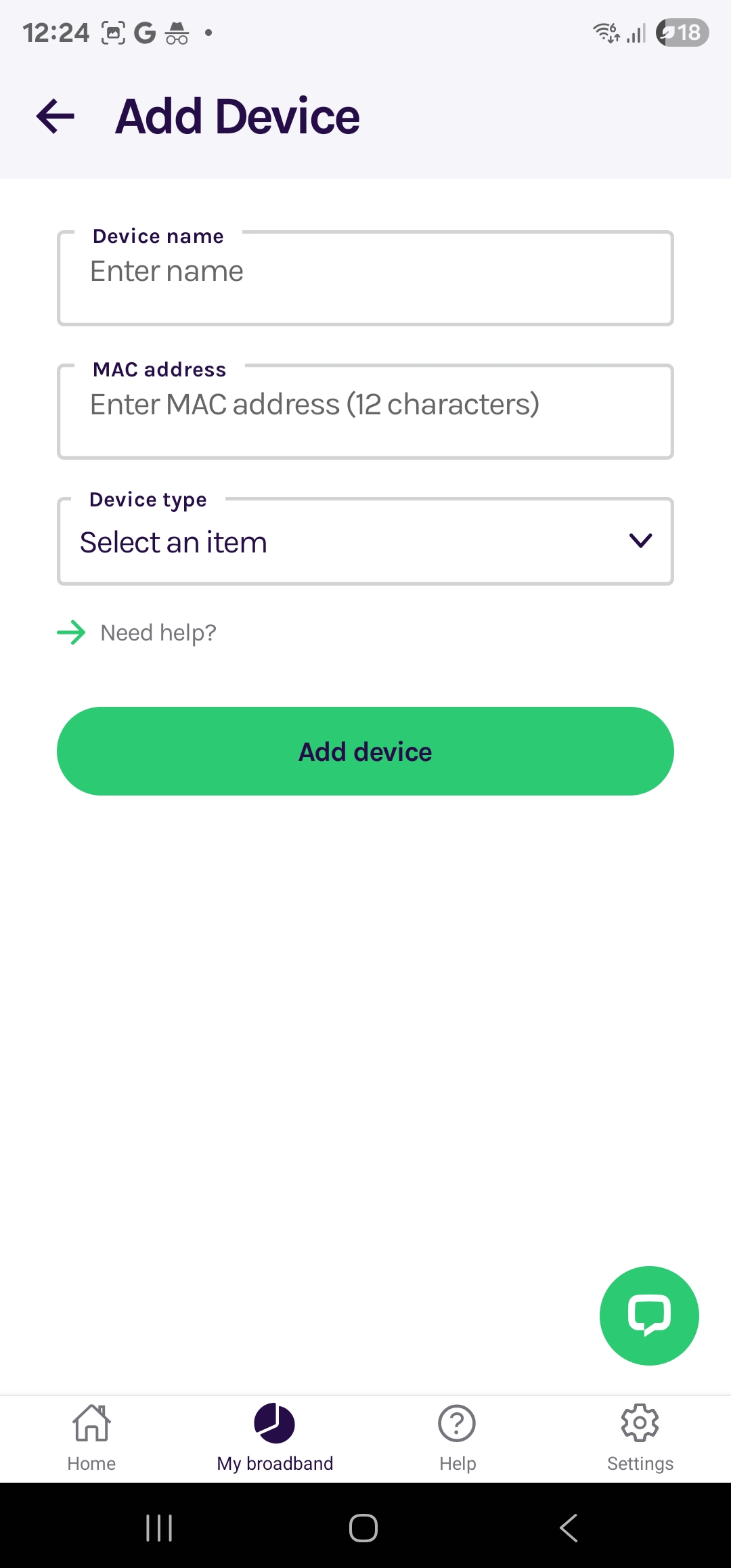
- Device Name: Enter a name that will help you identify the device, such as “Sam’s PS5” or “Kitchen Speaker”.
- MAC Address: Enter the device’s Wi-Fi MAC address. If you are unsure where to find it, search online for the instructions for your device model.
Step 4: Add the device
- Select Add Device.
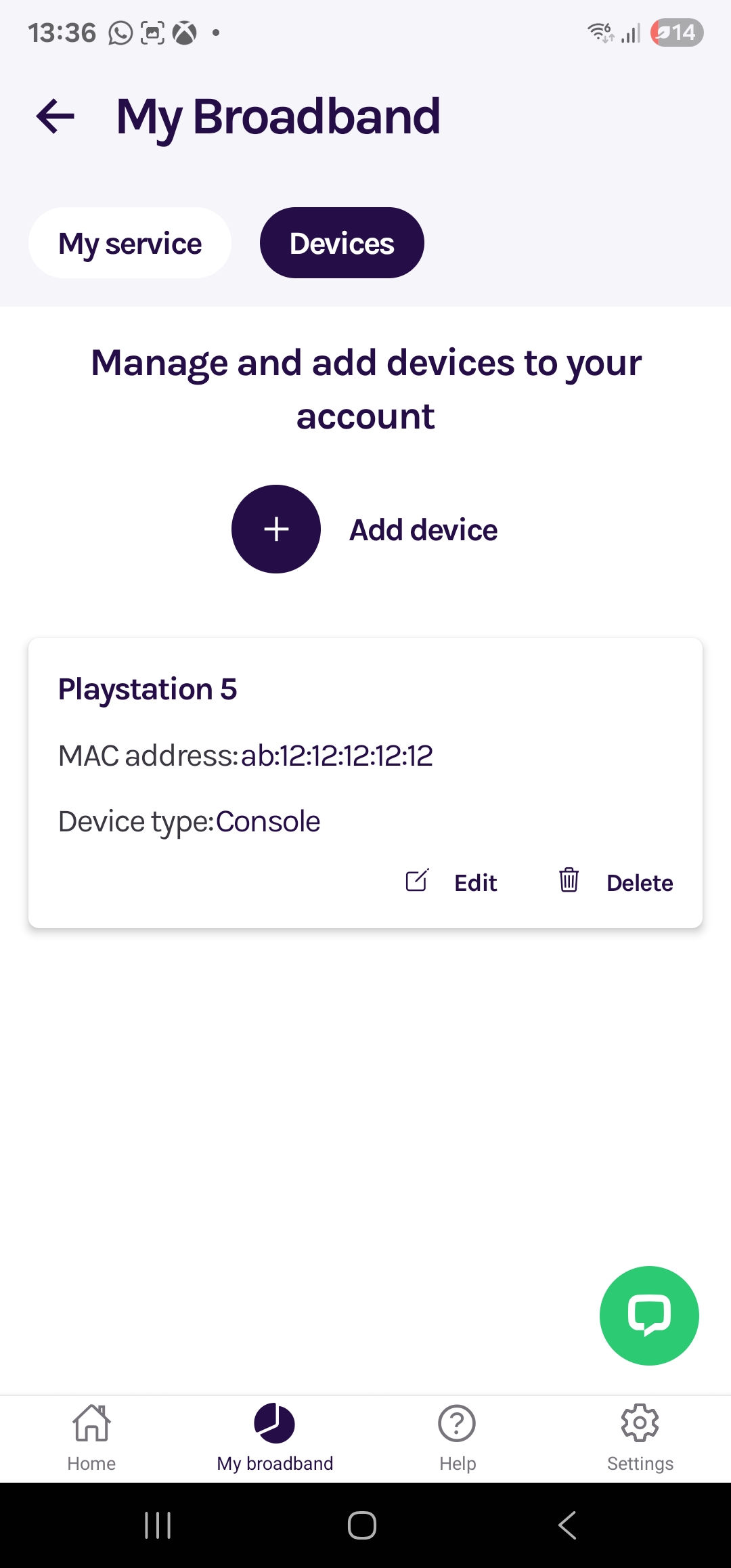
- The device should now appear in your device list.
- To add another device, repeat the same steps.
Change your password
You can update your Glide account password in just a few steps using the app.
Step 1: Sign in
- Open the Glide App and sign in using your Glide username and current password.
- You will be taken to the app home screen.
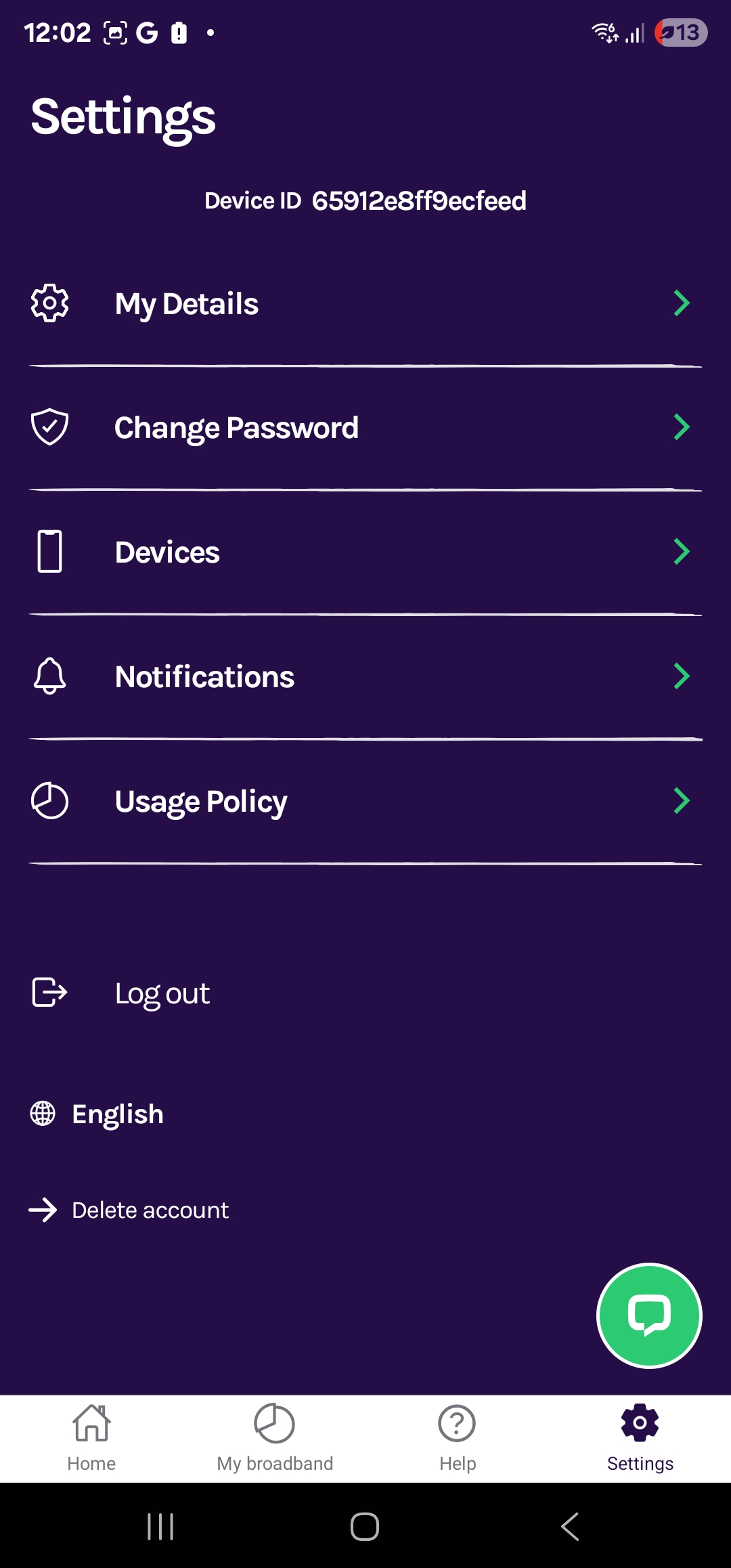
Step 2: Open Settings
- Select Settings from the bottom navigation bar.
- Select Change Password.
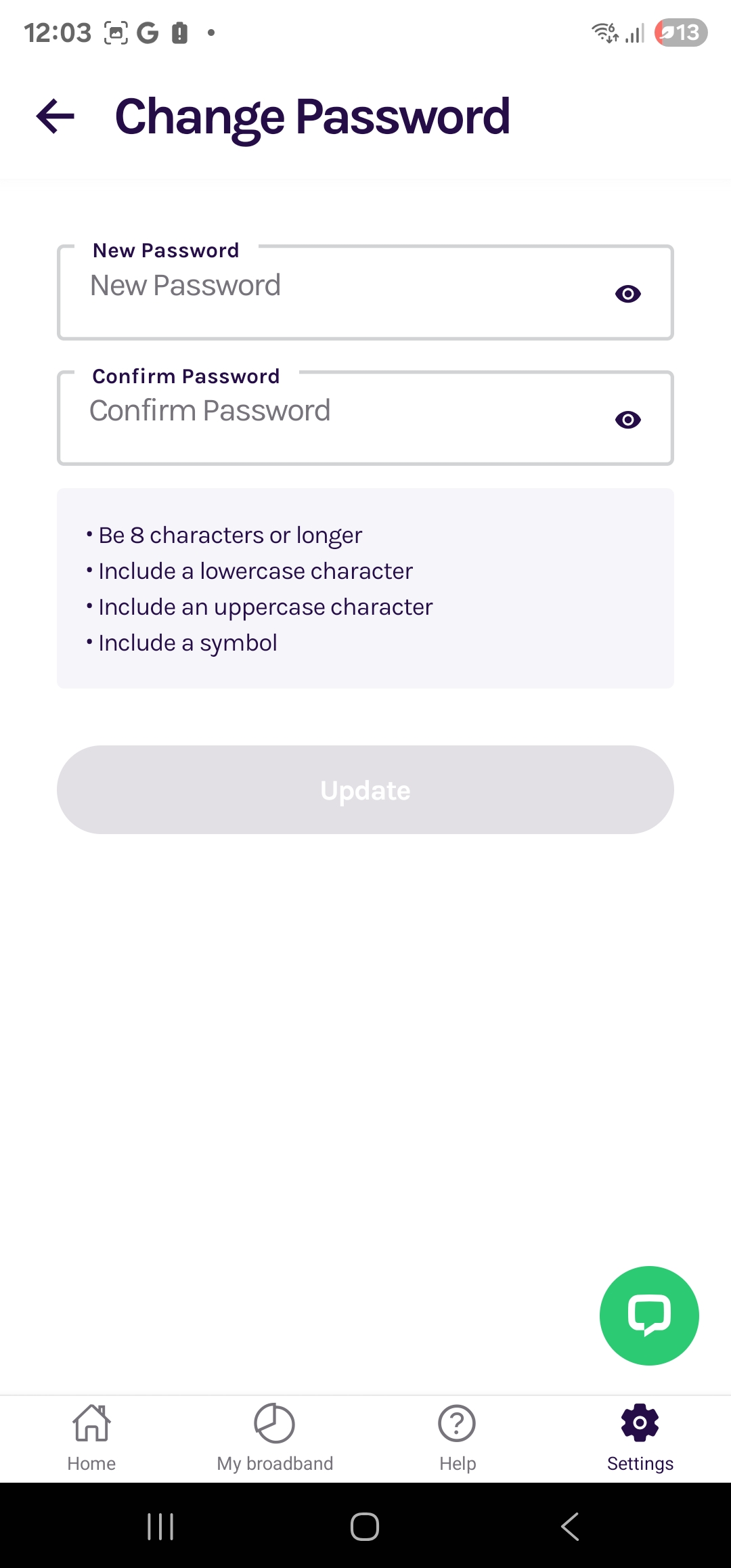
Step 3: Create a new password
- Your new password must contain at least eight characters, including uppercase and lowercase letters and at least one symbol.
- Enter the new password twice, then select Update.
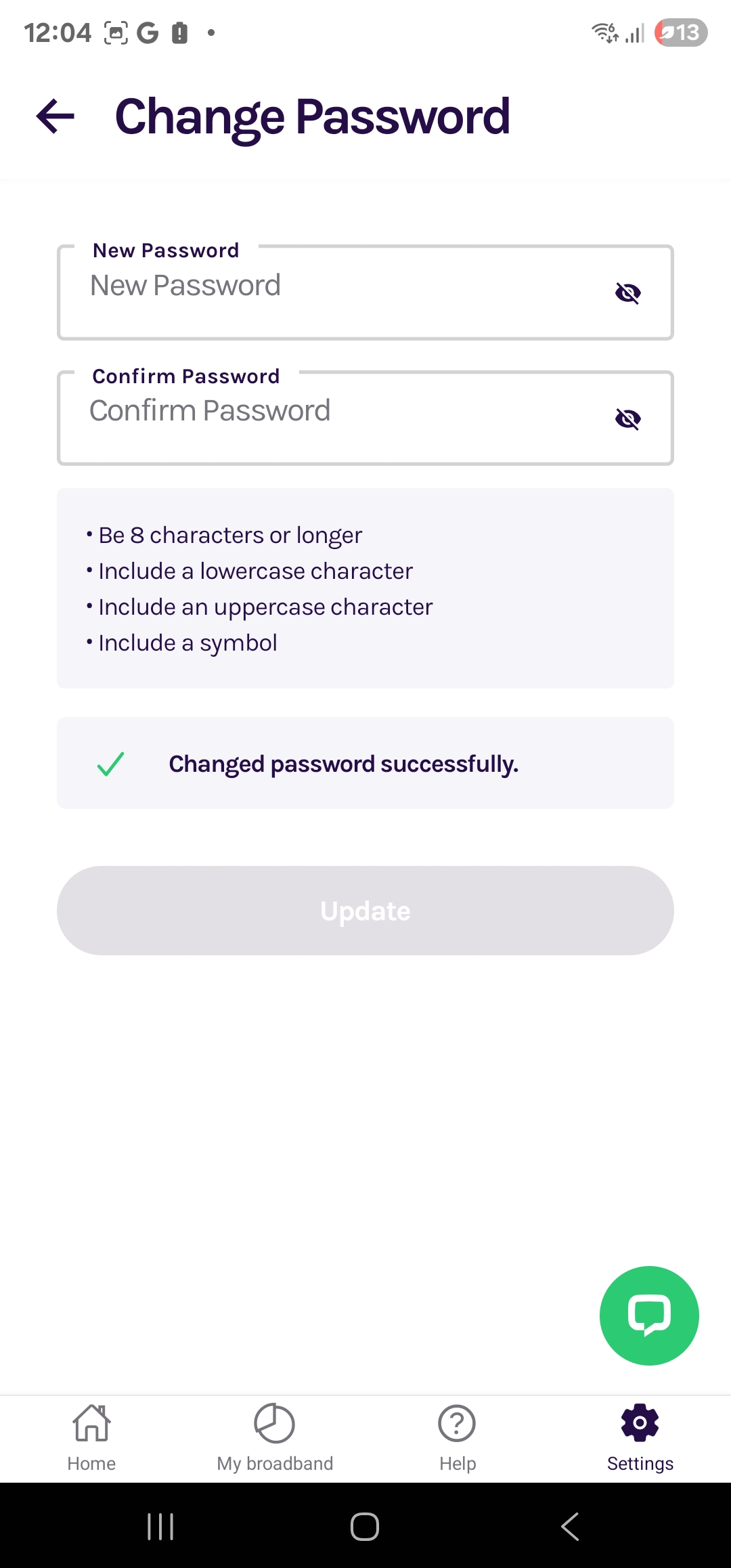
Step 4: Check the confirmation
- If the password has been changed successfully, a confirmation message will appear.
- Use your new password the next time you sign in.
- If the password cannot be changed, the app will display a message explaining what needs to be corrected.
Check the service status at your location
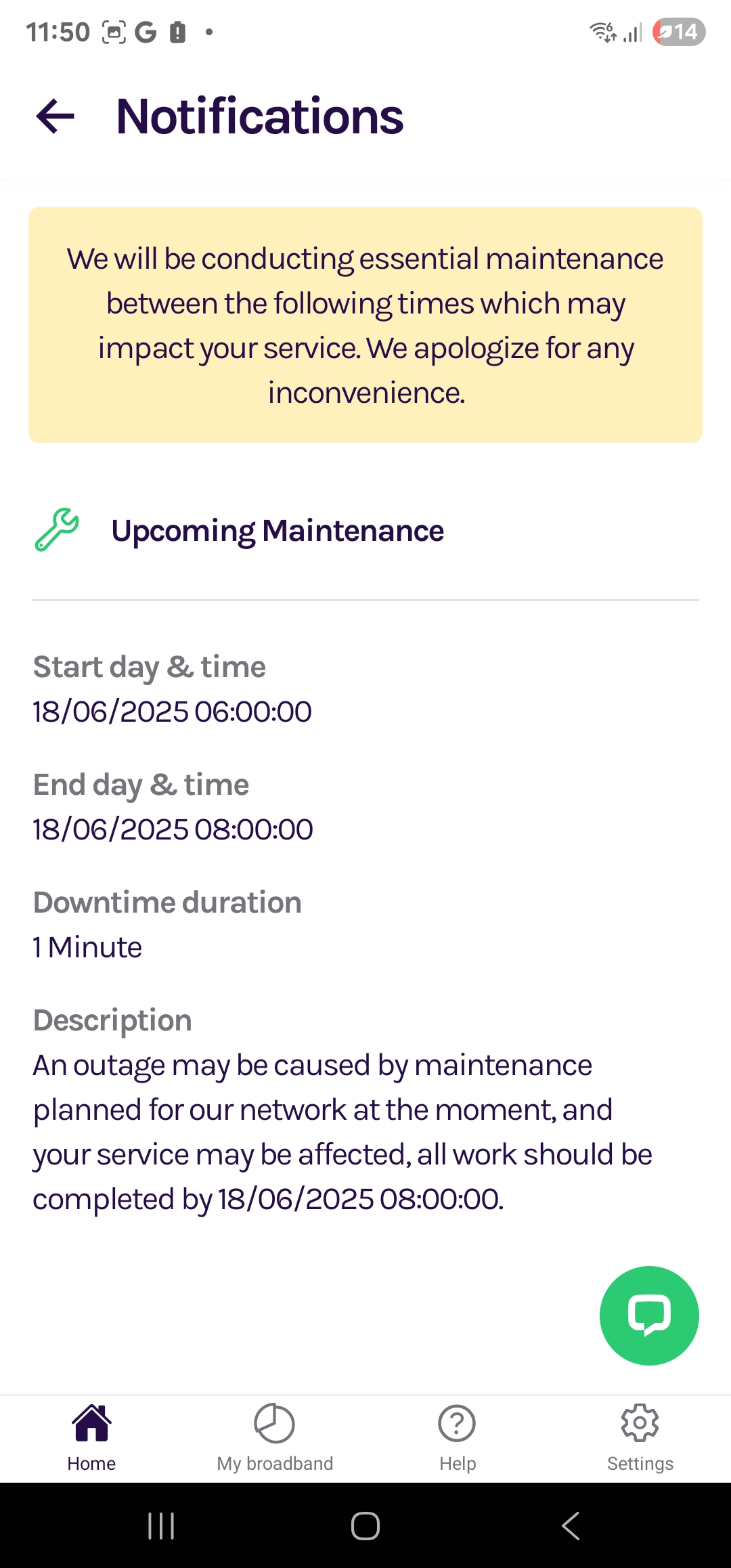
The Glide App allows you to check for known service issues, outages and planned maintenance affecting your location.
Step 1: Sign in
- Open the Glide App and sign in.
- You will be taken to the app home screen.
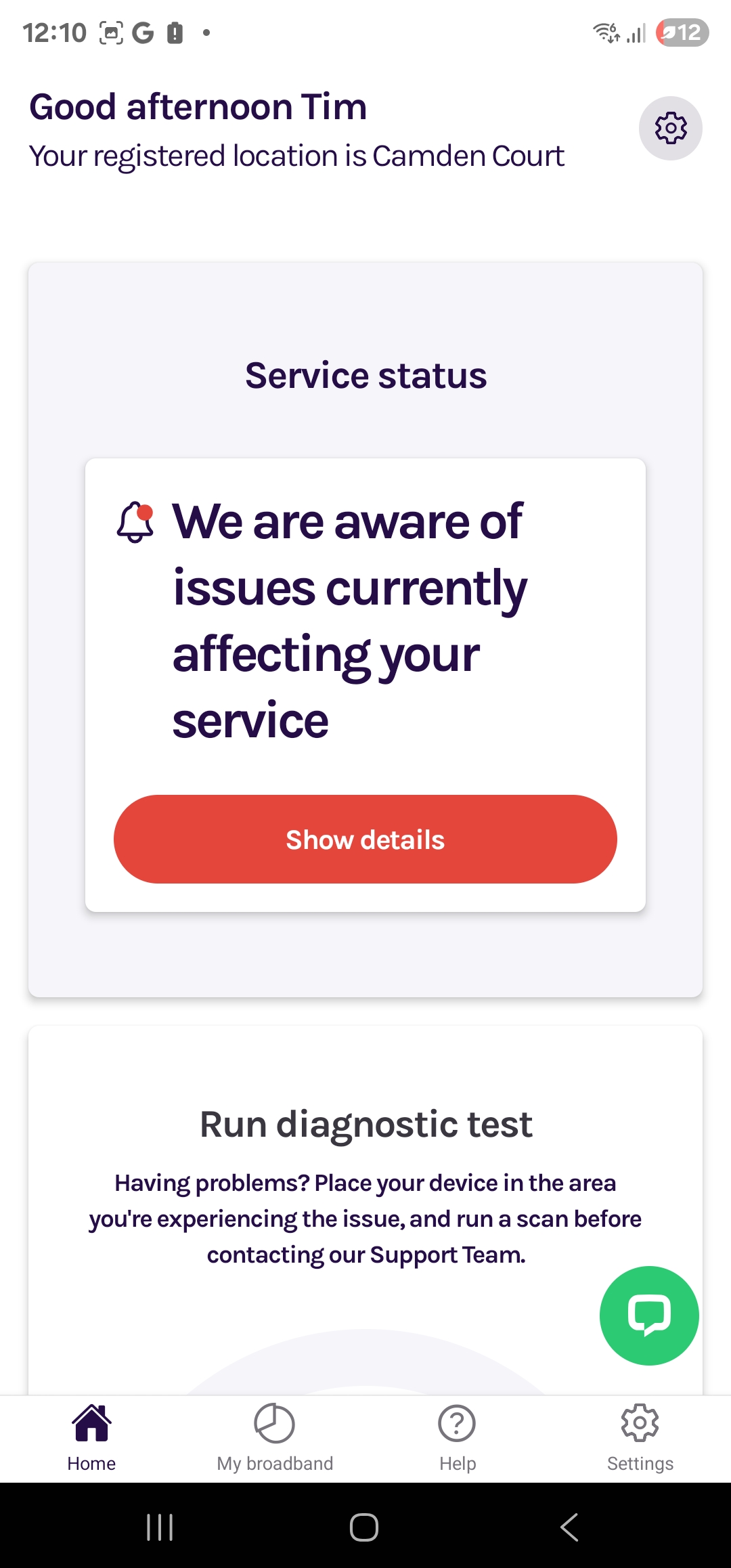
Step 2: Check Service Status
- Find the Service Status section on the home screen.
- This section shows any known issues or outages affecting your connection.
- Select Show Details to view further information.
Step 3: View further information
- Review the latest information about the issue.
- If an outage is displayed, our team is already investigating it.
- If you still need assistance, select Chat to an Agent or Create a Ticket.
Step 4: Check planned maintenance
- If a Planned Maintenance section is displayed, select it to view the schedule and further details.
Get support
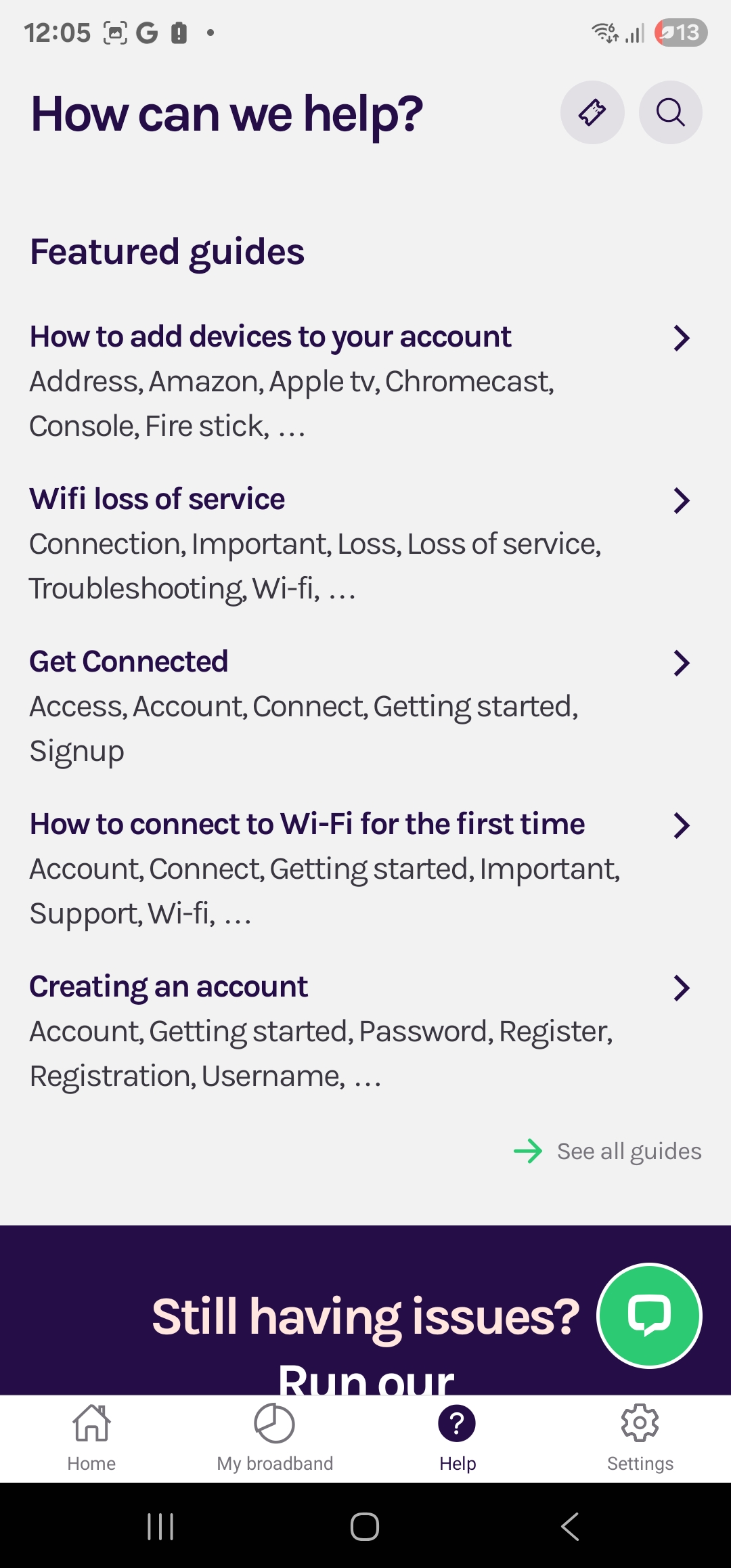
The Glide App provides quick access to support articles, live chat and support tickets.
Find support articles
- From the home screen, scroll to the bottom and select Need Help.
Chat with us
- Select the green chat icon to start a live chat with one of our support agents.
Create a support ticket
- Select Need Help > Create a Ticket.
- Complete the form and submit it. We will respond by email.
Download the Glide App
Download the app for your device using one of the links below: